友情链接:
Contact us Chinese English Alibaba
DYLINK new technologyNational High-Tech Enterprise
Service Hotline0755 86120002


Service Hotline0755 86120002

分类:4-in-1
描述:
Product DescriptionDY-SW1908HF-DC-580mmIt is a KVM control device with video and USB switching functions. It integrates 8 KVM consoles and an 18.5-inch LCD screen into a 1U height structure, allowing management of 8 computer servers through the built-in keyboard, touch mouse, and display. It is effi0755 86120002

Product Description
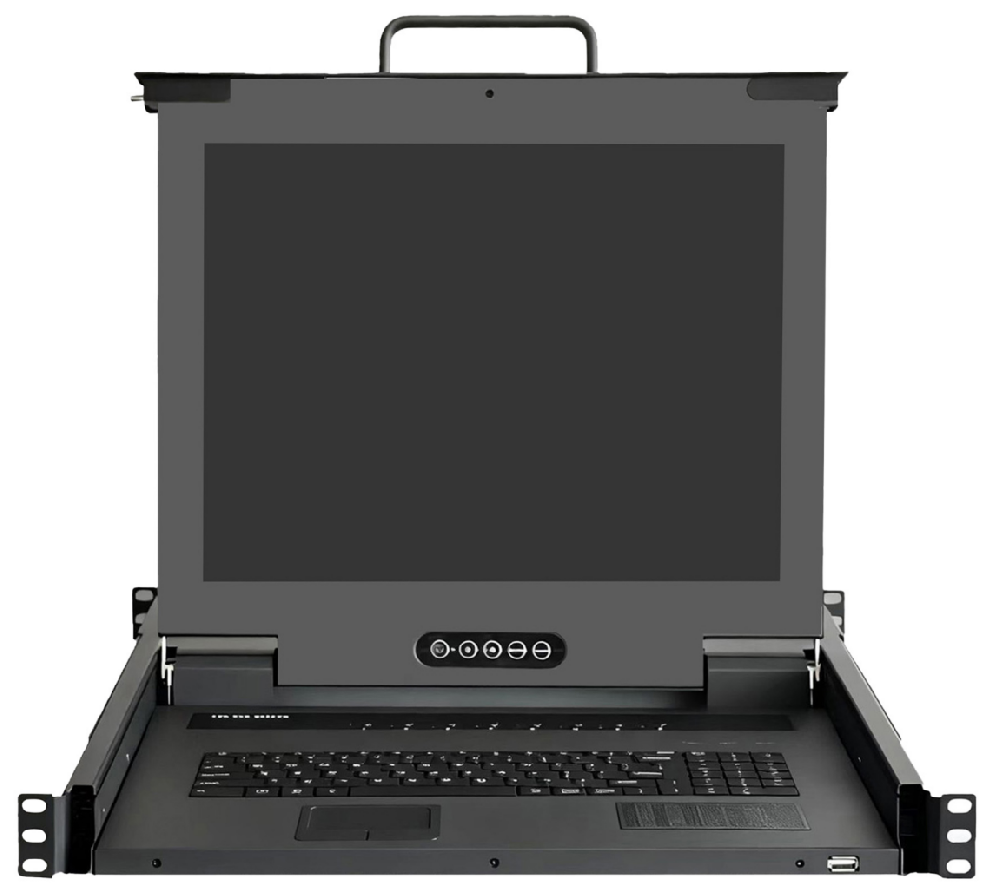
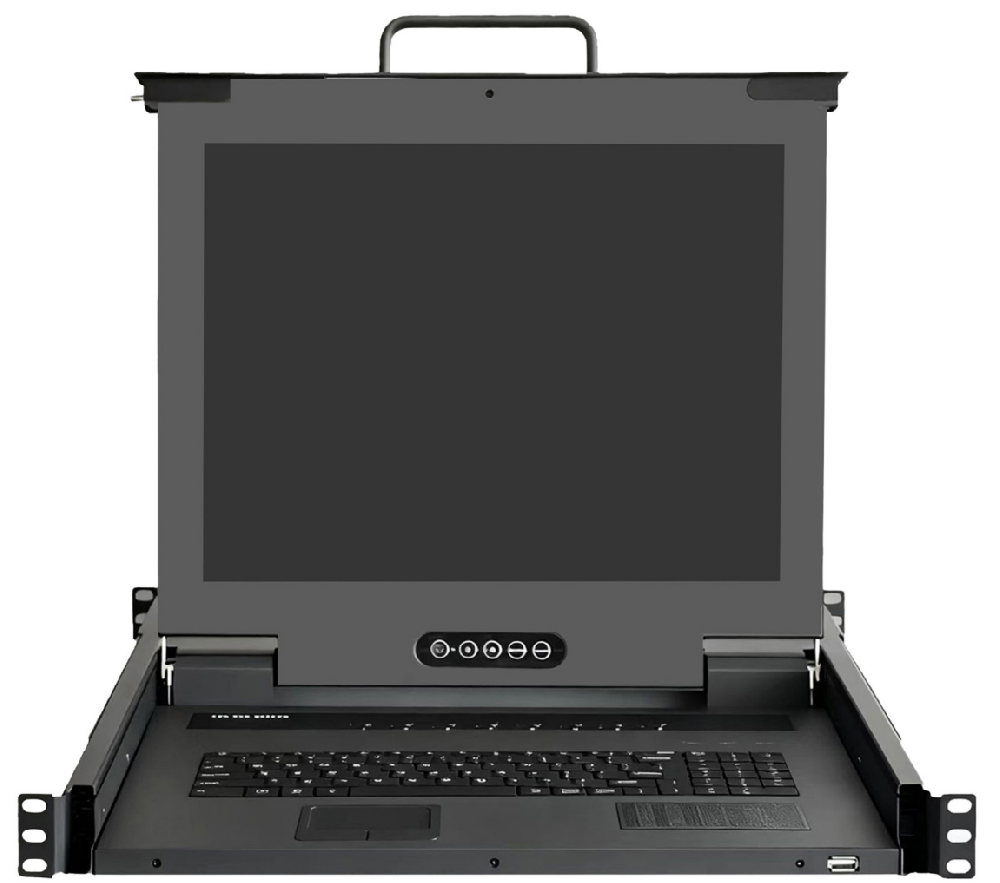
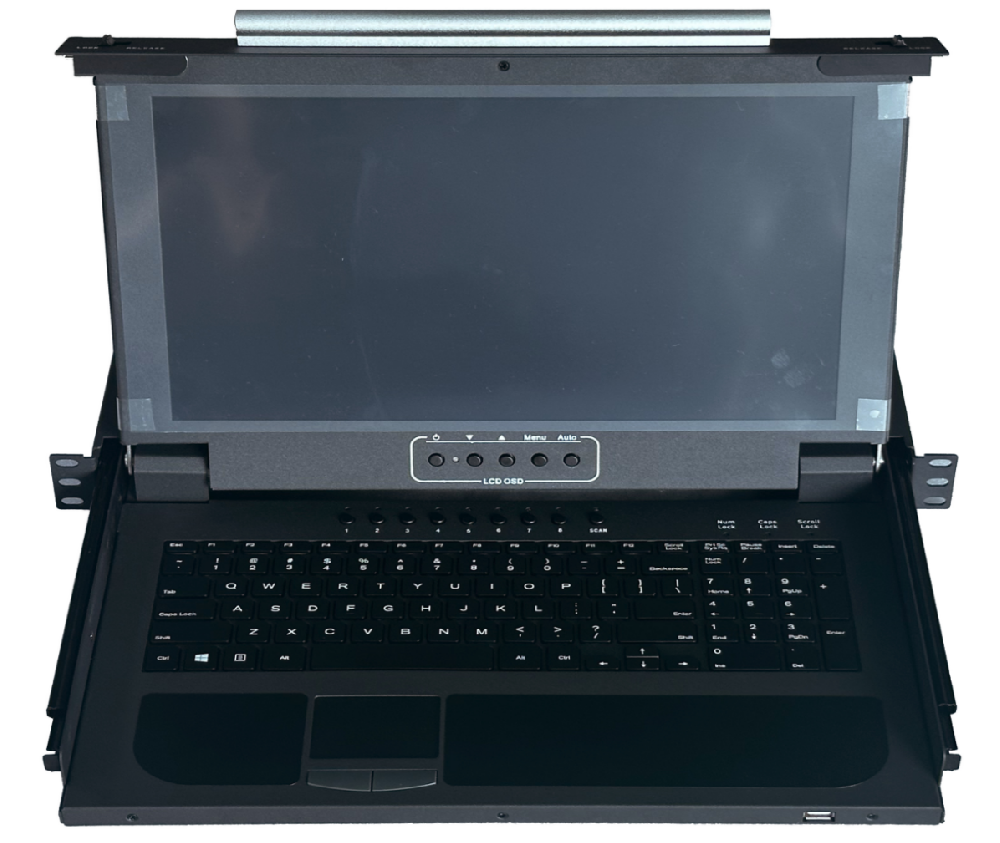
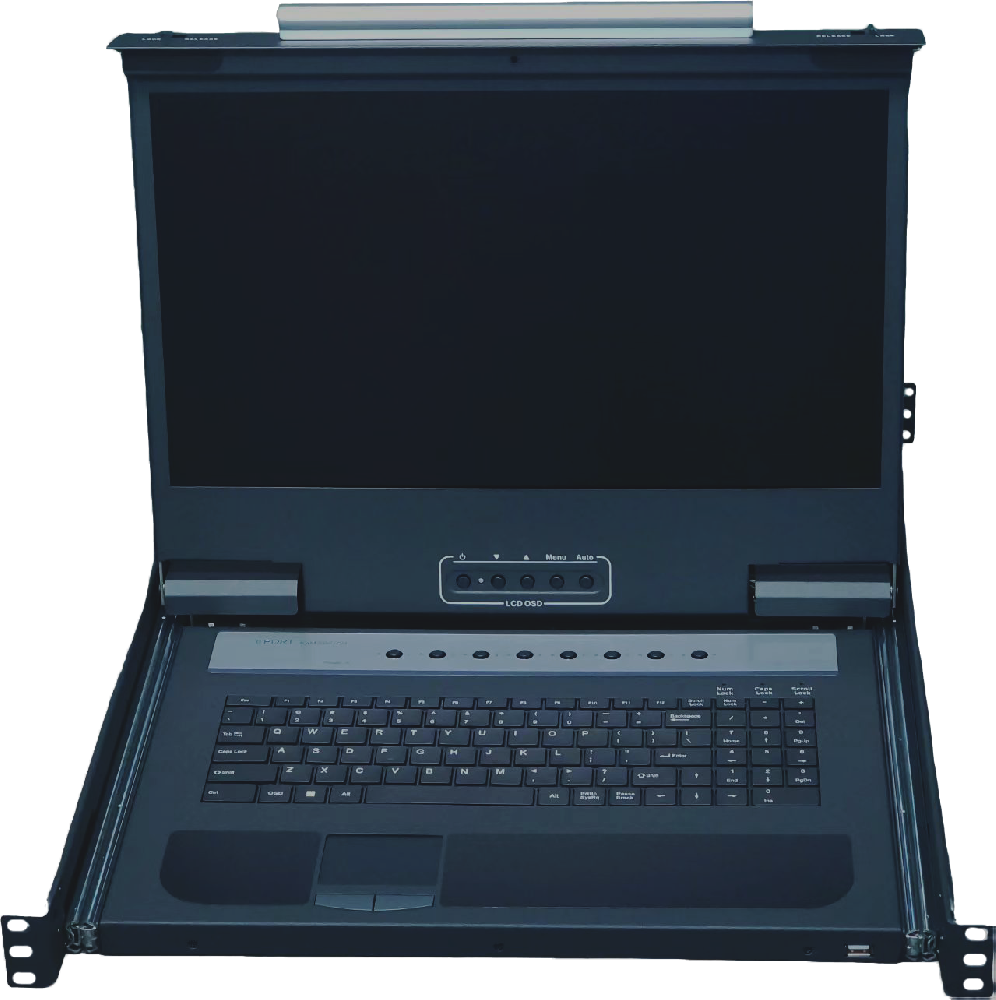
DY-SW1908HF-DC-580mmIt is a KVM control device with video and USB switching functions. It integrates 8 KVM consoles and an 18.5-inch LCD screen into a 1U height structure, allowing management of 8 computer servers through the built-in keyboard, touch mouse, and display. It is efficient, convenient, space-saving, and cost-effective.
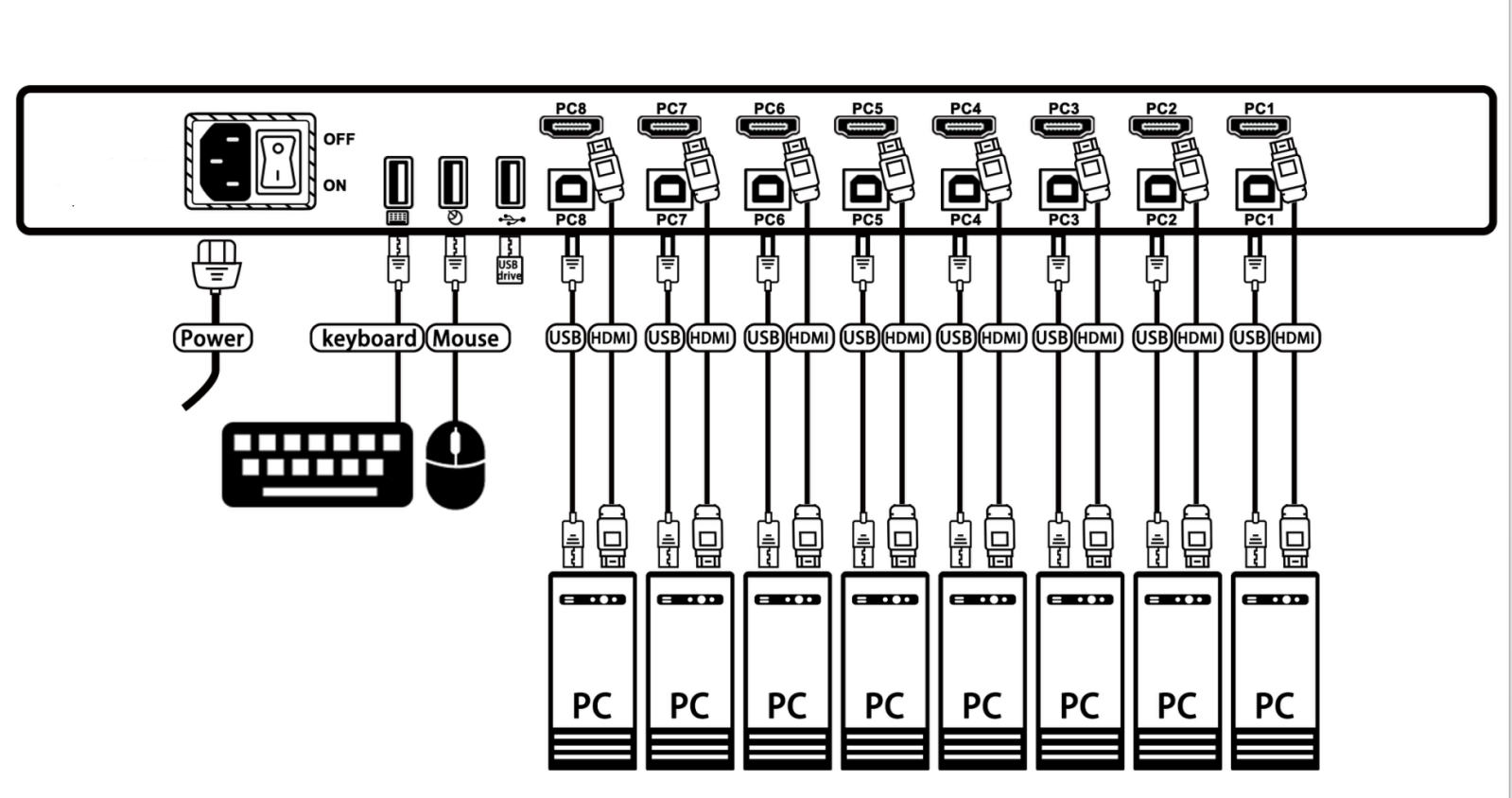
The device is easy and convenient to install; simply insert the cable into its corresponding port. No software configuration is required, and there are no compatibility issues.
Product Features
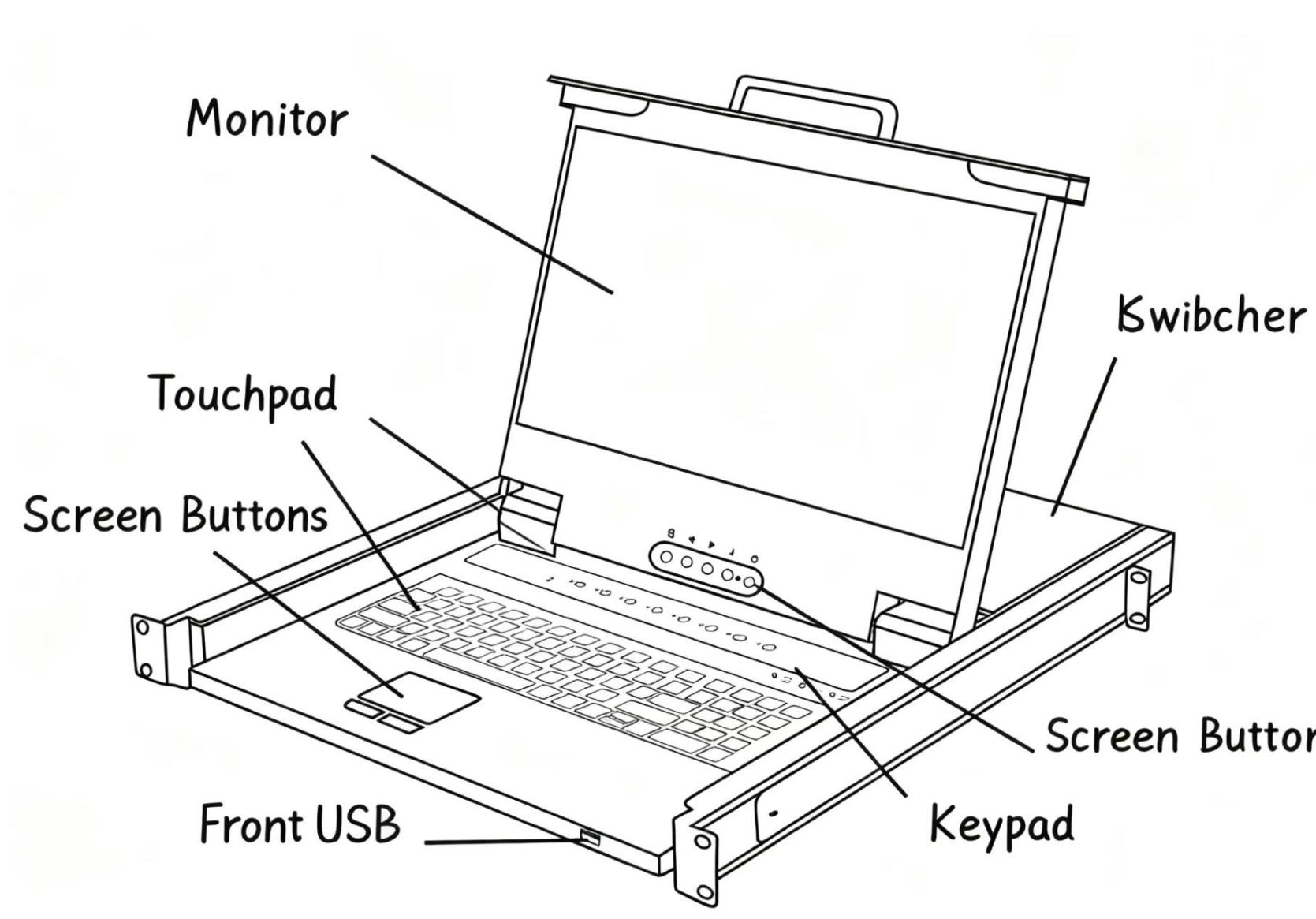
l Integrate 8 KVM consoles and an 18.5-inch LCD screen into a 1U height structure to manage 8 computer servers
l Equipped with BOE high-definition display, with a resolution as high as 1920 x 1080, and compatible with multiple lower resolutions.;
l The video switching speed is fast; images can be rendered in 1~2 seconds.
l Connect to the computer server port via a USB interface to use the keyboard and mouse for computer control;
l Built-in keyboard, touchpad, and display;
l 内Built-in USB Hub, fully compatible with USB 2.0 specifications, and provides two USB 2.0 ports (1 rear, 1 front), which can connect any USB 2.0 devices such as USB flash drives, cameras, U-shields, etc.
l Provides 2 USB 1.1 ports (rear-mounted), which can connect external USB keyboards and mice. It supports most wired and wireless keyboards and mice. The USB keyboards and mice support port emulation, enabling seamless switching of USB keyboards and mice between computers and servers.
l Supports cross-platform operating systems such as Windows, Unix, Linux, Mac, and domestic operating systems based on Linux like Neux, Kylin, and UnionTech OS.
l Hot-swappable support – servers can be added or removed at any time without needing to power off the LCD console;;
l The panel has 8 buttons to select and switch between 8 computer servers, and it can also switch using hotkeys;
l • Automatic scanning function, with adjustable automatic scanning interval time of 5-200 seconds in seven steps;
l No software installation is required; you can directly operate on the computer server.
Schematic Diagram of Device Connection
Rack Installation and Usage
The LCD KVM intelligent control platform series meets the installation requirements of standard 19-inch cabinets. It is installed from the back to the front: first, mount the rear ears on the back of the cabinet and tighten the rear ear screws. Then insert the KVM control platform into the cabinet from the front along the ear guide slots and tighten the front ear screws. According to the adjustable length of the ears, it can be installed in cabinets with a depth of 600mm to 1000mm.
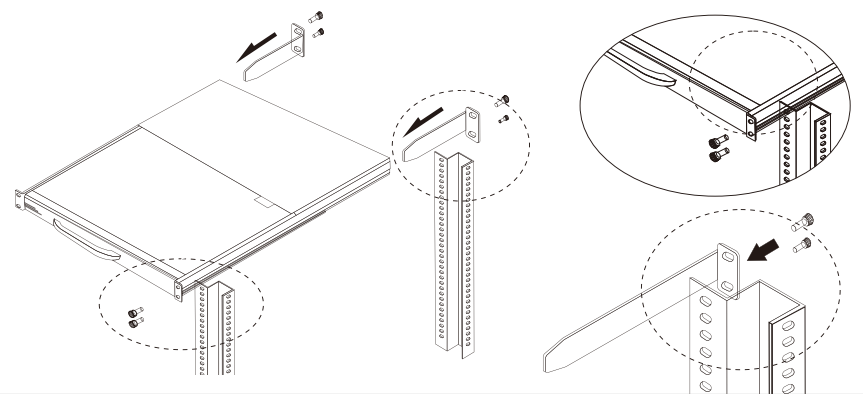
1、After installing KVM, connect the power supply, then connect the computer's HDMI and USB ports one by one.
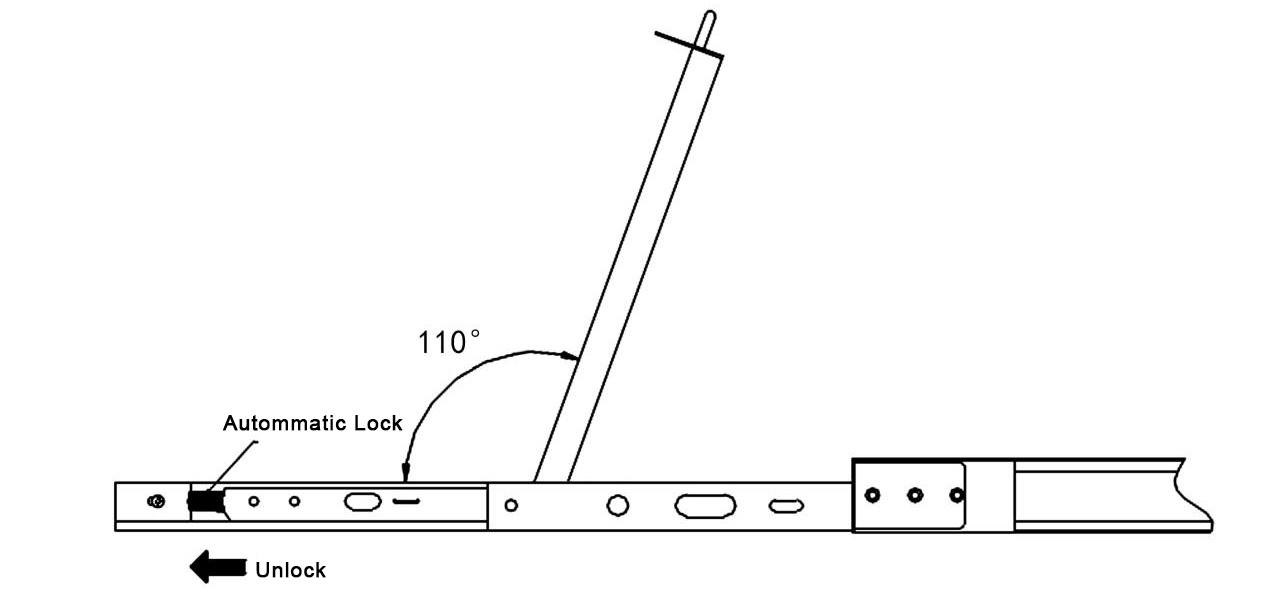
2、Push the console latch inward, fully pull out the KVM console from the cabinet, and the rails will automatically lock.,
3、Flip up the LCD display, which can be opened up to 110 degrees. When using it, please adjust it to the best viewing angle for easy operation and use (see the figure below).
4、After opening the box cover, push the two side automatic locking modules outward to unlock, then gently push the cabinet in.
Switching Method Description
①Switch keyboard layout
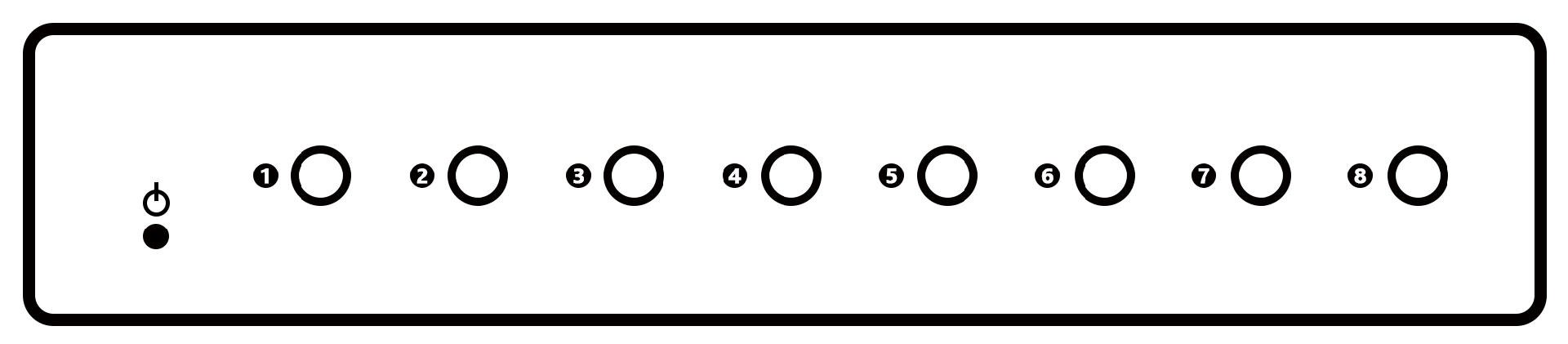
The button panel is located at the top of the keyboard, and each button on it corresponds to a different PC port. Pressing a button once can switch to the corresponding computer.
Note: A flashing indicator light means that the KVM is currently using this port.
②Hotkey switching
Switch ports using hotkeys with the built-in keyboard and external keyboard
Hotkey | Function |
Double-click Scroll Lock + port number (1~8) + Enter | Connect KVM to the corresponding video and USB ports |
Specification Parameters
Model | DY-SW908HF-DC-580MM | |
LCD Screen Parameters | Size: | 18.5-inch 1080P Screen (LED) |
Resolution: | 1920(RGB)×1080, FHD | |
Color display | 16.7M | |
Brightness: | 250 cd/m2 | |
View angle: | 85/85/85/85 (Typ.)(CR≥10 | |
Show area | 408.96(W)×254.6(H) mm | |
Contrast: | 1000:1 (Typ.) (TM) | |
Working frequency | 60Hz | |
Interface | Control signal | 8 x USB-B type interface |
Video signal | 8 x HDMI 2.0 type interface | |
Keyboard and mouse expansion interface | 2 x USB 1.1 Postposition | |
Peripheral Expansion Operation Interface | 1 x USB 2.0 front port, 1 x USB 2.0 rear port | |
Switch Panel Function | 8 x Switch Button (The switch button can arbitrarily switch a certain port) | |
Switch Panel Indicator Light Function | 8 x red LED lights (The LED lights flashing indicate the current port position) | |
Maximum PC connections: | 8 units | |
PC Port Connection Specifications | HDMI | |
Switching method: | Switch by pressing a key / Hotkey switch | |
Automatic scan interval: | 5 ~ 200 seconds, 7 adjustable levels | |
Keyboard/Mouse: | 99 Keyboard and Touchpad | |
Input rated voltage: | DC 100V | |
Shell: | iron shell spray painting | |
Space: | 1U, 19-inch rack | |
Net Weight / Gross Weight ( KG ): | 11.5kg / 17kg | |
Size (W x H x D): | 442 x 42 x580 (mm) | |
Package dimensions(W x H x D): | 672x575x175mm | |
Operating Temperature: | 0°C to50 °C | |
Storage Temperature: | -20°C to 60°C | |
Humidity: | 10% to 90%,No condensation | |
Common Fault Handling
1、The computer is on, but the keyboard and mouse are not working.。
l Check if this computer can use the keyboard and mouse normally.。
l Please confirm that the USB cable is properly connected to both the computer and the KVM, then restart this computer.
l • Do not press any keys on the keyboard when the selected computer is starting up. Otherwise, it may cause a keyboard error on the computer or failure to detect the keyboard.
l When switching ports, avoid moving the mouse or pressing any mouse buttons.。
2. No image signal on KVM.
l Connect other displays directly to the server to confirm if they can display normally.。
l Please check if all connectors are properly connected.
l Please confirm that the power supply is connected to the KVM.
l Is the LCD screen power button turned on?
 DYLINK new technology
 0755 86120002
 liyj@dayapc.com
 13316531915
 West 2nd Floor, Building B, No. 91, Ma Hom South Road, Ma Hom Community, Xili Street, Nanshan District, Shenzhen
  公众号二维码
公众号二维码
业务主管
业务经理
业务经理
业务经理
售后